 MacTucTac Guide
MacTucTac User Guide
For version 1.7.8 · How to use all 10 tools, plus FAQ
🚀Getting Started
Installation
- Double-click the downloaded MacTucTac-1.7.8.dmg.
- Drag the MacTucTac icon into the Applications folder.
- Close the window and eject (⏏) the 'MacTucTac' disk from your desktop.
The Layout
The app opens on Home — File Fixer: just drop files and it finds and fixes problems in one go. For a specific task, pick a tool from the left sidebar, then drag files or folders onto the right side. Most tools scan dropped folders recursively, subfolders included.
The hammer icon in the menu bar (top-right of your screen) stays even when the window is closed — use it to toggle Keep Awake or reopen the app.
Sending Files Straight from Finder
You don't have to open the app first — right-click any file or folder in Finder and send it over. There are two ways.
- Services → MacTucTac — works right away, nothing to switch on.
- MacTucTac, shown directly in the right-click menu — this one you switch on once. In MacTucTac → Settings…, find "Finder context menu" and click Open Settings…; System Settings opens at exactly the right spot, where you tick MacTucTac.
Either way MacTucTac comes to the front and Home — File Fixer checks that file straight away. It also works when the app is closed or only waiting in the menu bar — a window opens on its own.
Today’s Verse
A Bible verse sits quietly below the Home screen. One a day — the same verse all day, changing after midnight. The text lives inside the app, so it works offline and nothing leaves your Mac. If you’d rather not see it, turn off “Show today’s verse on Home” in MacTucTac → Settings….
Changing the Language
MacTucTac follows your system language by default. To override it, open MacTucTac → Settings… (⌘,) and pick any of 20 languages (takes effect after a restart): 한국어 · English · 简体中文 · 繁體中文 · 日本語 · Français · Deutsch · Español · Português · Русский · العربية · हिन्दी · বাংলা · मराठी · తెలుగు · Tiếng Việt · Bahasa Indonesia · Türkçe · اردو · Hausa
Working in Tabs
Press ⌘T for a new tab and keep several tools open in one window. Switch tabs with ⇧⌘← / ⇧⌘→, close one with ⌘W.
Each tab works on its own. While one tab compresses or shares the files it just cleaned up, another can examine a completely different set — the two never mix.
Launch at Login
MacTucTac can wait quietly in the menu bar whenever your Mac starts. Toggle "Launch at Login" in MacTucTac → Settings….
🏠Home — File Fixer
The first screen you see. No need to know which tool to use — just drop files or folders and MacTucTac looks for problems and tells you how to fix them.
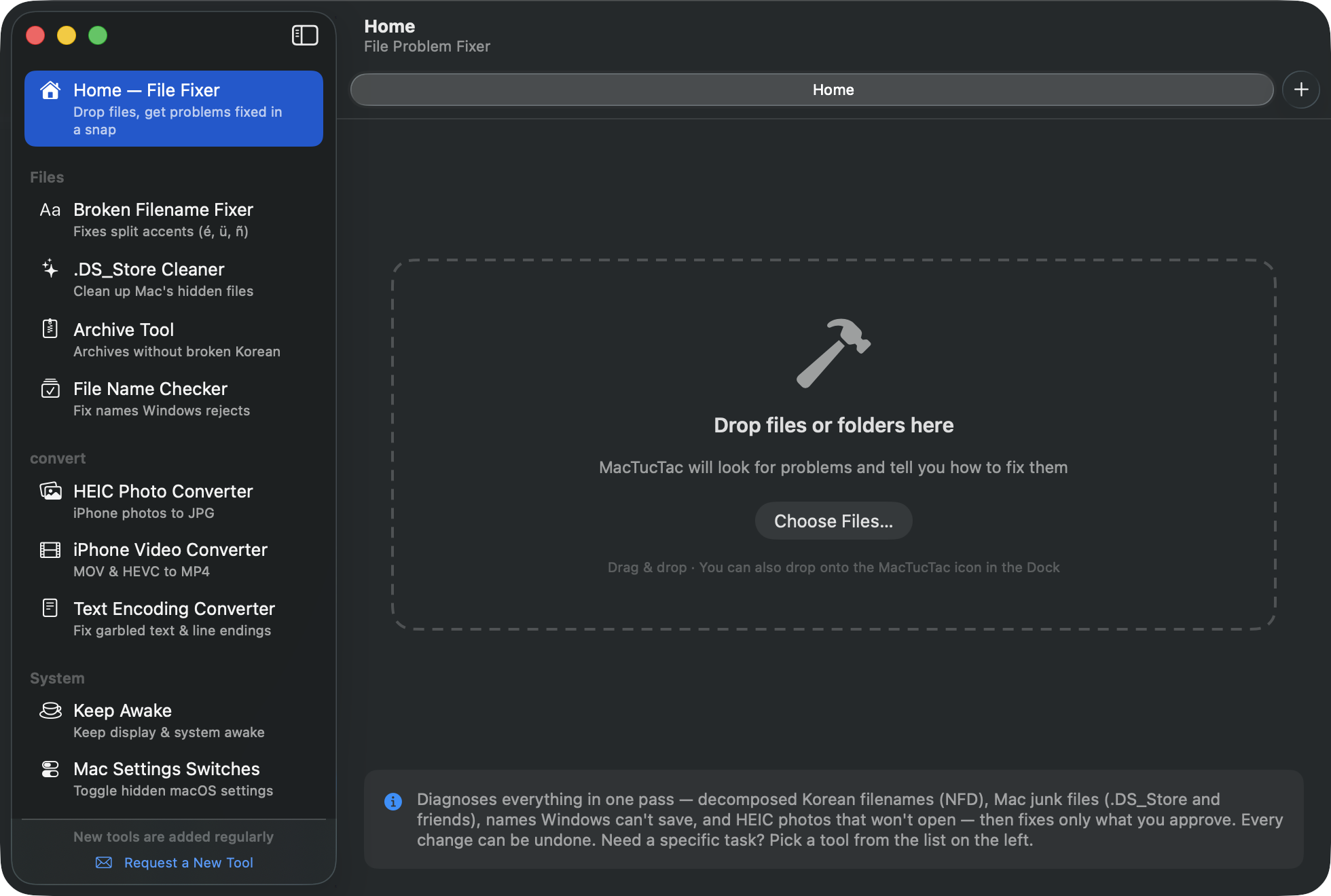
- Drop files or folders — dropping onto the MacTucTac Dock icon works too. Four checks run at once: decomposed Korean names · Mac junk files · names Windows can't save · HEIC photos.
- Each finding appears as a card with a count and the reasoning behind it. Uncheck anything you don't want.
- Click "Fix N Selected in One Go". Done.
- From the completion screen, continue straight to "Pack into ZIP" (an archive that won't break on Windows) or Share.
🔤Korean File Name Fixer
Files created on a Mac can show up on Windows with scattered Korean letters like ㅎㅏㄴㄱㅡㄹ (the NFD problem). This tool fixes that.
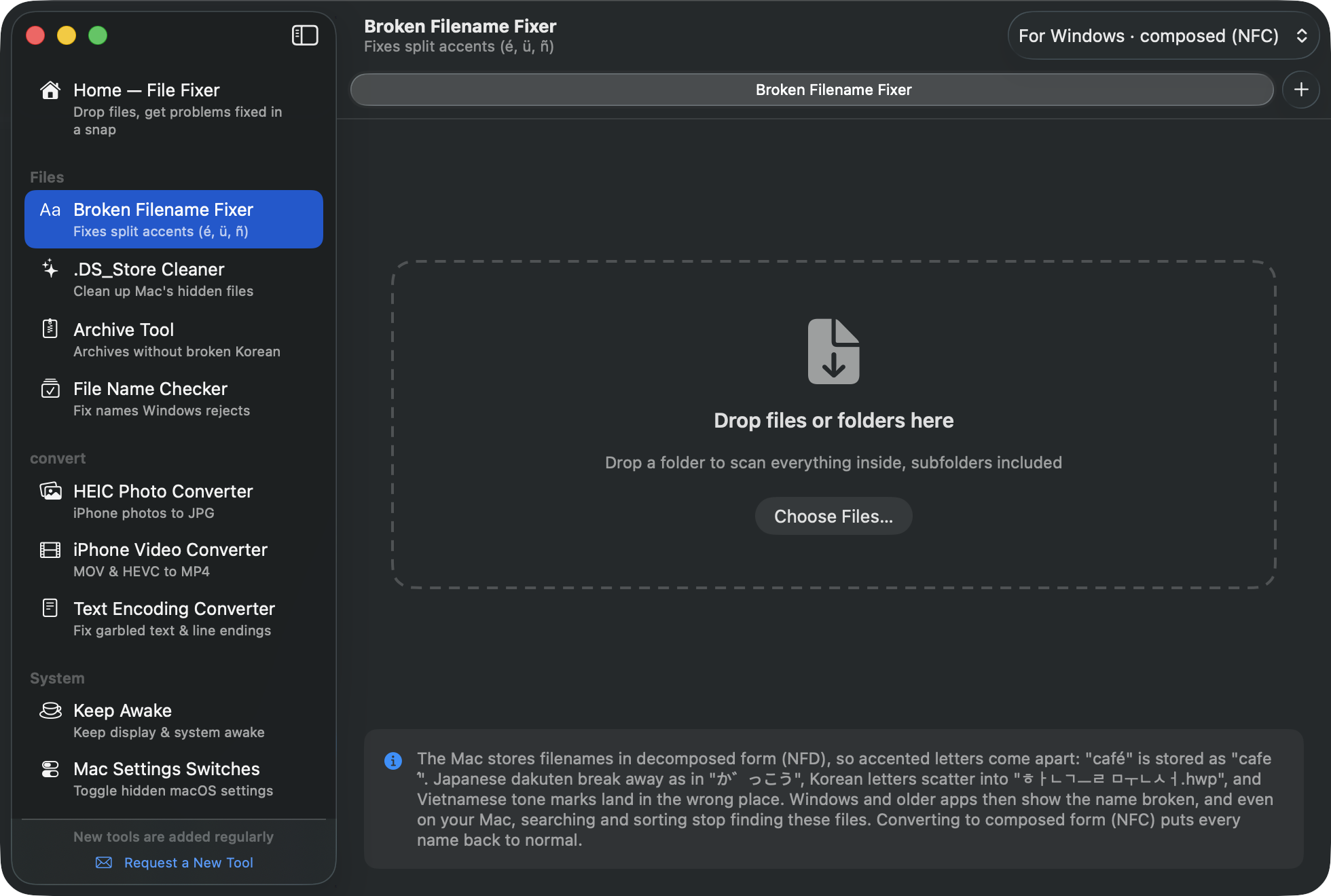
- Drop files or folders.
- Only files that need fixing are listed, with an "On Windows right now" preview of the broken name.
- Click "Convert N" to switch them to composed form (NFC).
✨.DS_Store Cleaner
Finds the hidden files the Mac leaves behind (.DS_Store, ._*, __MACOSX) and moves them to the Trash.
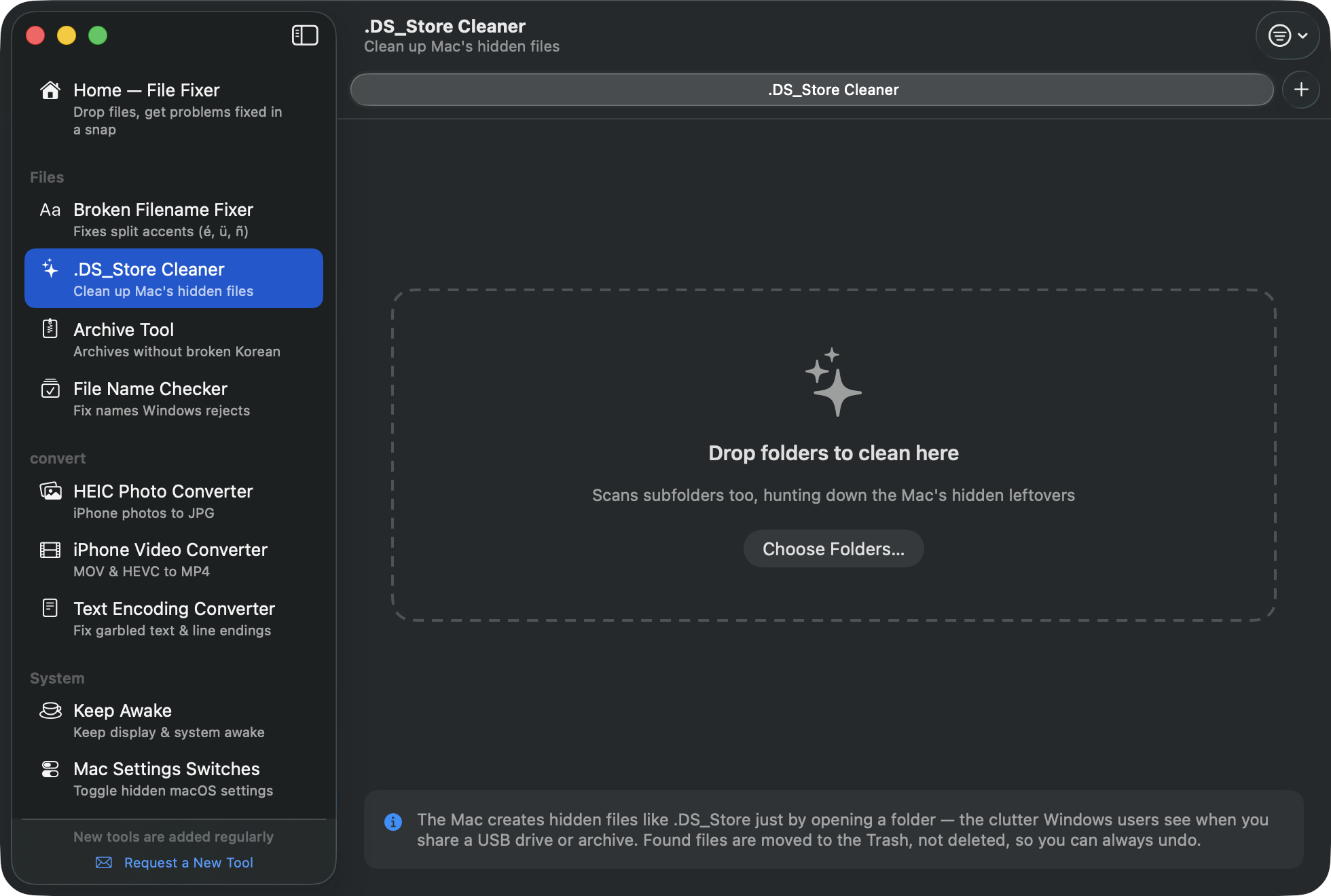
- Drop a folder to clean (a USB drive, for example).
- Check what was found, then click "Trash N Items".
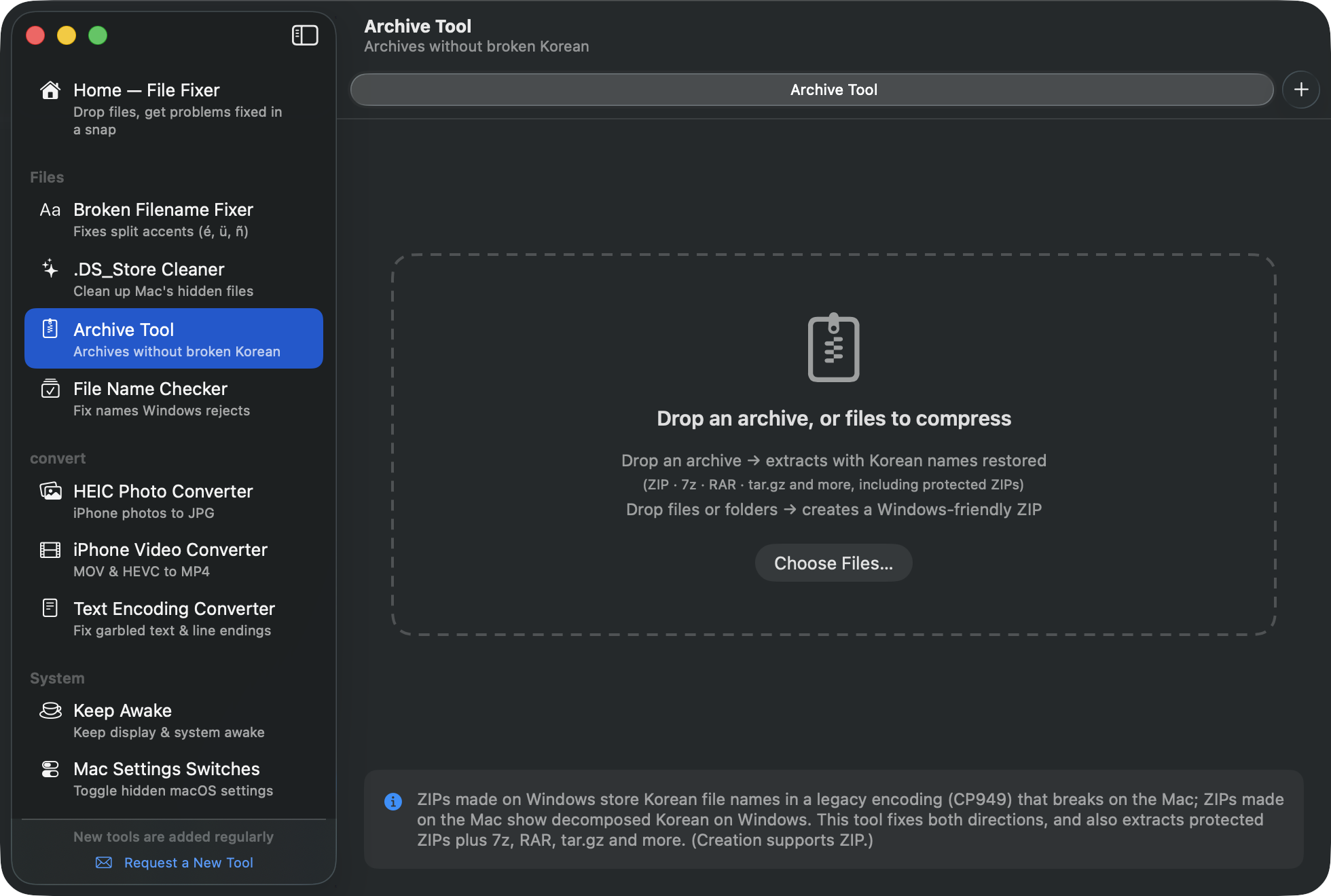
🗜️Archive Tool
Extracting
- Drop an archive (ZIP · 7z · RAR · tar.gz and more).
- If the ZIP came from Windows, you'll see "CP949 encoding detected" and Korean file names are restored automatically.
- For protected archives a password field appears. Enter it and click "Extract".
Creating
- Drop regular files or folders.
- Choose a format at the bottom. For Windows recipients, stick with the default ZIP.
- Optionally set a password — for ZIP choose compatibility-first (opens right in Windows Explorer) or security-first (AES-256); for 7z, turning on "Hide file list too" means nobody can even see what's inside without the password.
- Click "Compress" — the archive appears next to the originals.
✅File Name Checker
Finds names Windows refuses to save — forbidden characters (* ? " < > | and friends), trailing dots or spaces, and reserved names like CON or PRN — and fixes them safely.
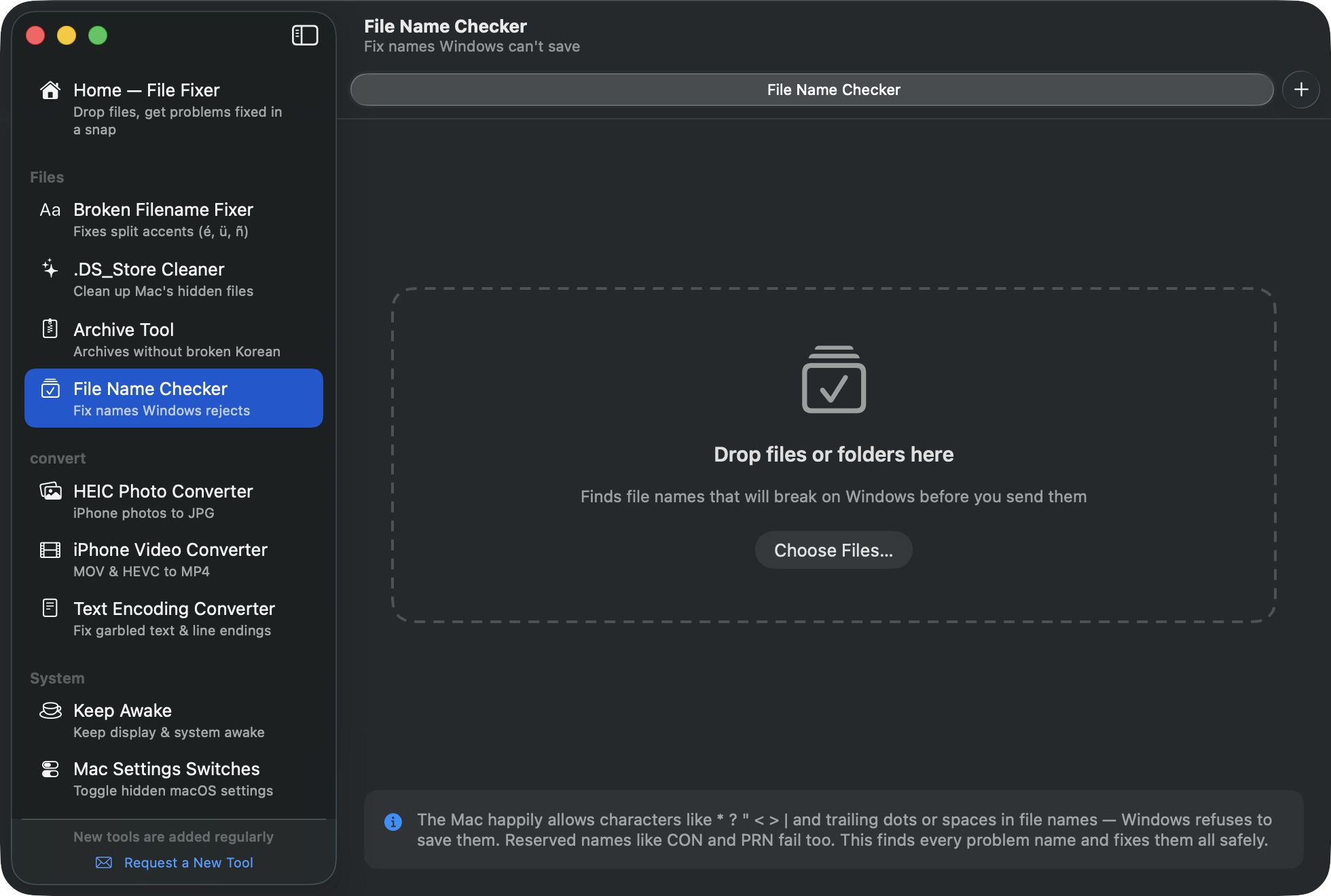
- Drop files or folders; only problem names are listed as current → fixed.
- Click "Rename N".
📷HEIC Photo Converter
Converts iPhone/Mac HEIC photos to JPG that opens anywhere, including Windows.
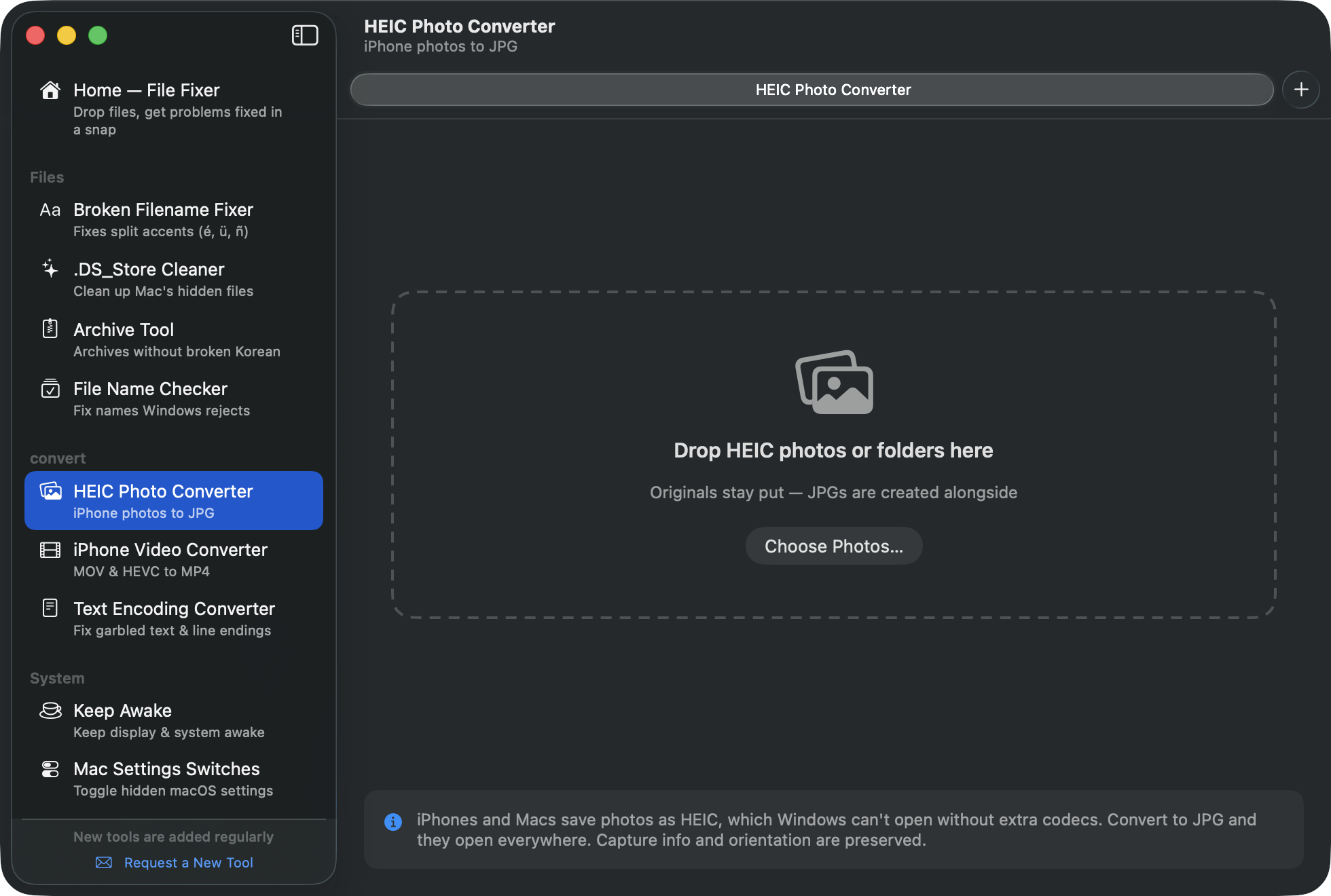
- Drop photos or a folder of photos.
- Click "Convert N to JPG" — originals stay put, JPGs are created alongside them.
Capture info (date, location) and orientation are preserved.
🎬iPhone Video Converter
iPhone videos (HEVC codec, MOV container) often show no picture — or won't play at all — on Windows. This converts them to MP4 (H.264) that plays anywhere.
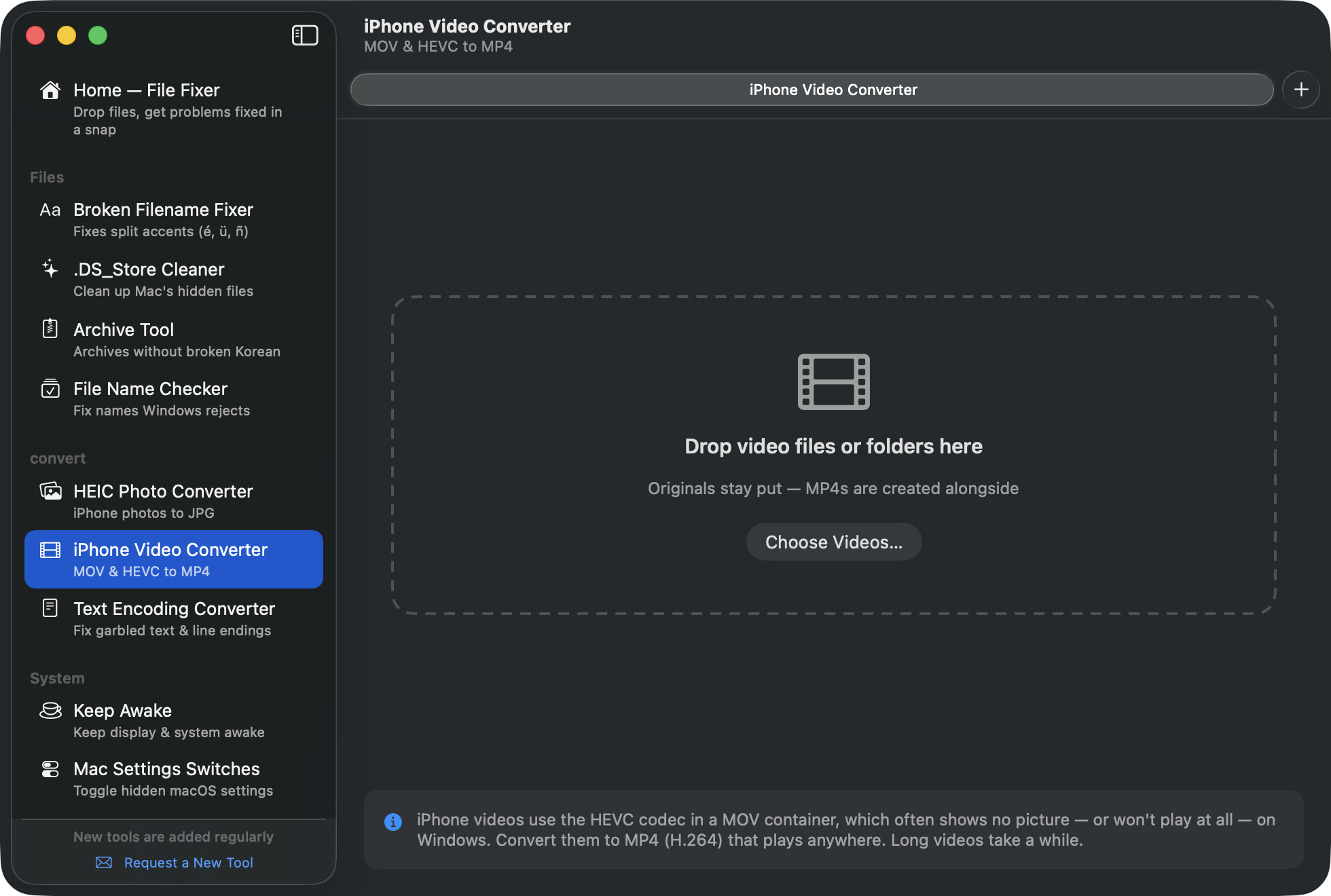
- Drop videos — each one's codec is analyzed, and already-compatible files are labeled so.
- Click "Convert N to MP4". Long videos take a while.
📝Text Encoding Converter
Text, subtitles (smi, srt) and CSVs from Windows can look garbled on the Mac (CP949 encoding), while Mac-made text collapses into one line in Windows Notepad (line endings). Fix both here.
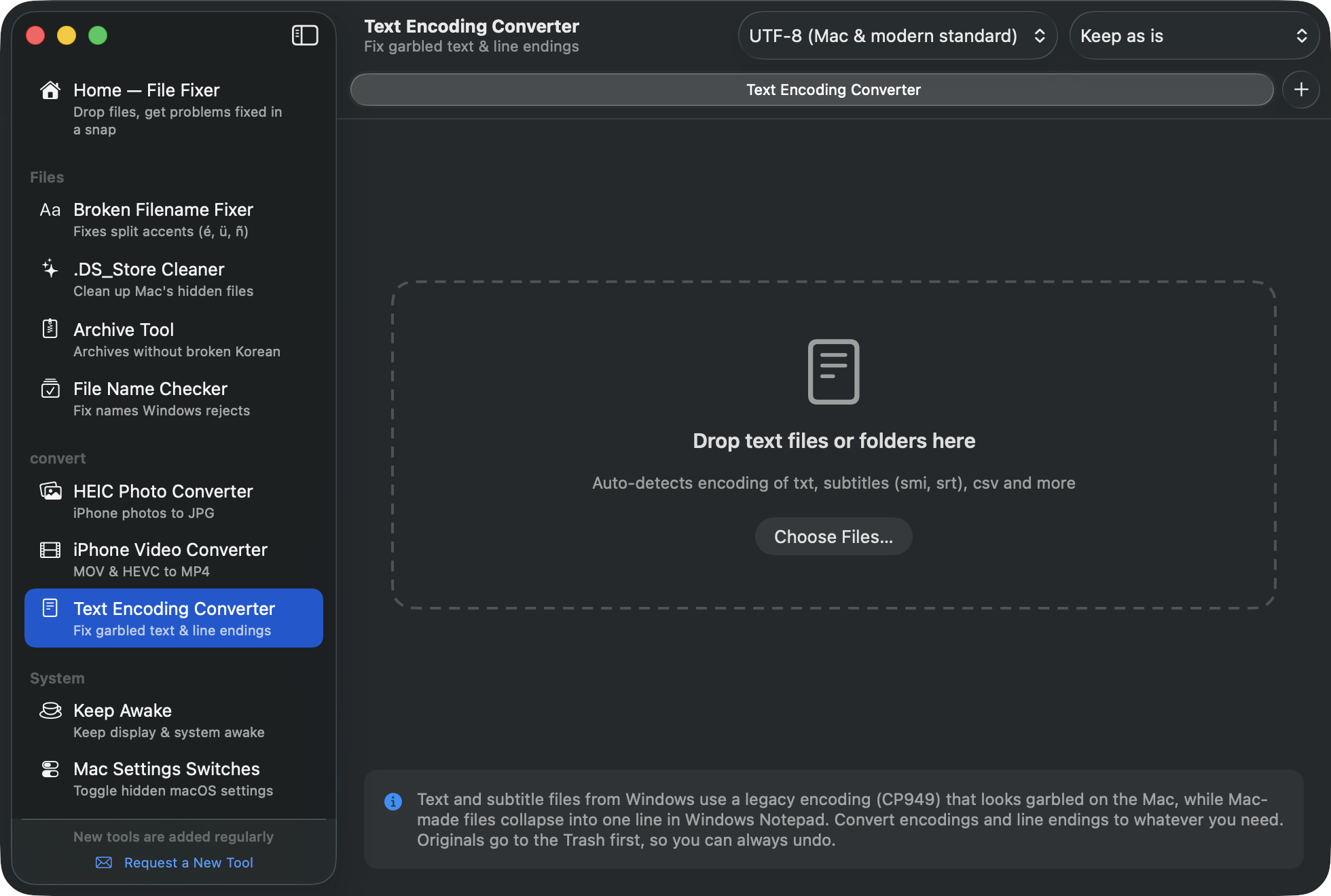
- Drop text files — encoding is auto-detected with a first-line preview.
- Pick the target encoding (UTF-8 recommended) and line endings (LF for Mac / CRLF for Windows) in the toolbar.
- Click "Convert N" — originals are kept in the Trash.
☕️Keep Awake
Stops your Mac from falling asleep during big downloads, presentations, or movies.
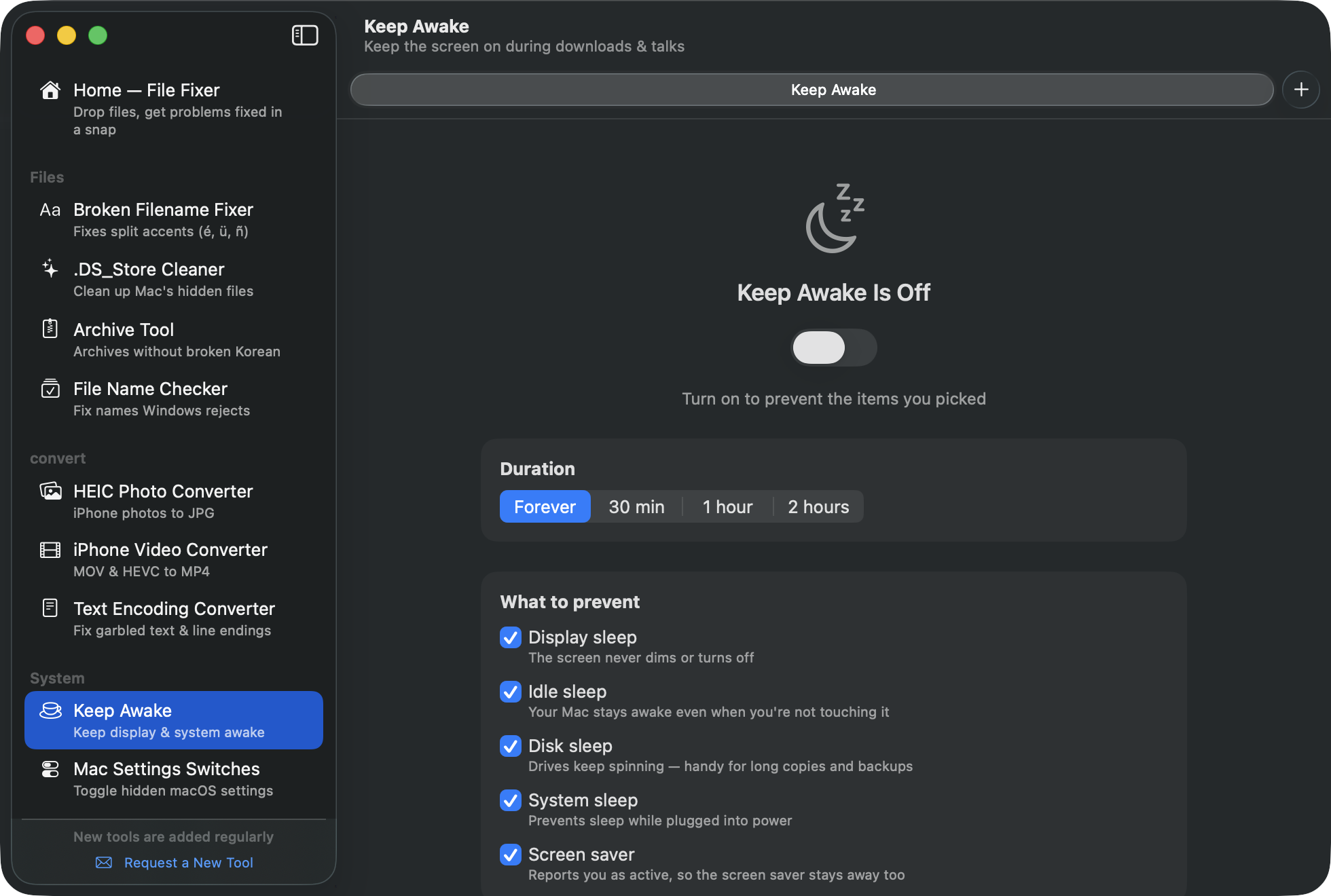
Pick a duration first (forever · 30 min · 1 h · 2 h), then choose what to hold off. All five are on by default, and you can change them while it is running — the change applies at once.
- Display sleep — the screen never dims or turns off
- Idle sleep — your Mac stays awake even when you're not touching it
- Disk sleep — drives keep spinning, handy for long copies and backups
- System sleep — prevents sleep while plugged into power
- Screen saver — reports you as active, so the screen saver stays away too
The menu bar hammer icon flips it too, with no window. It releases itself when the time is up or when you quit the app, so your battery is safe.
⚙️Mac Settings Switches
Hidden macOS settings, normally Terminal-only, as simple checkboxes:
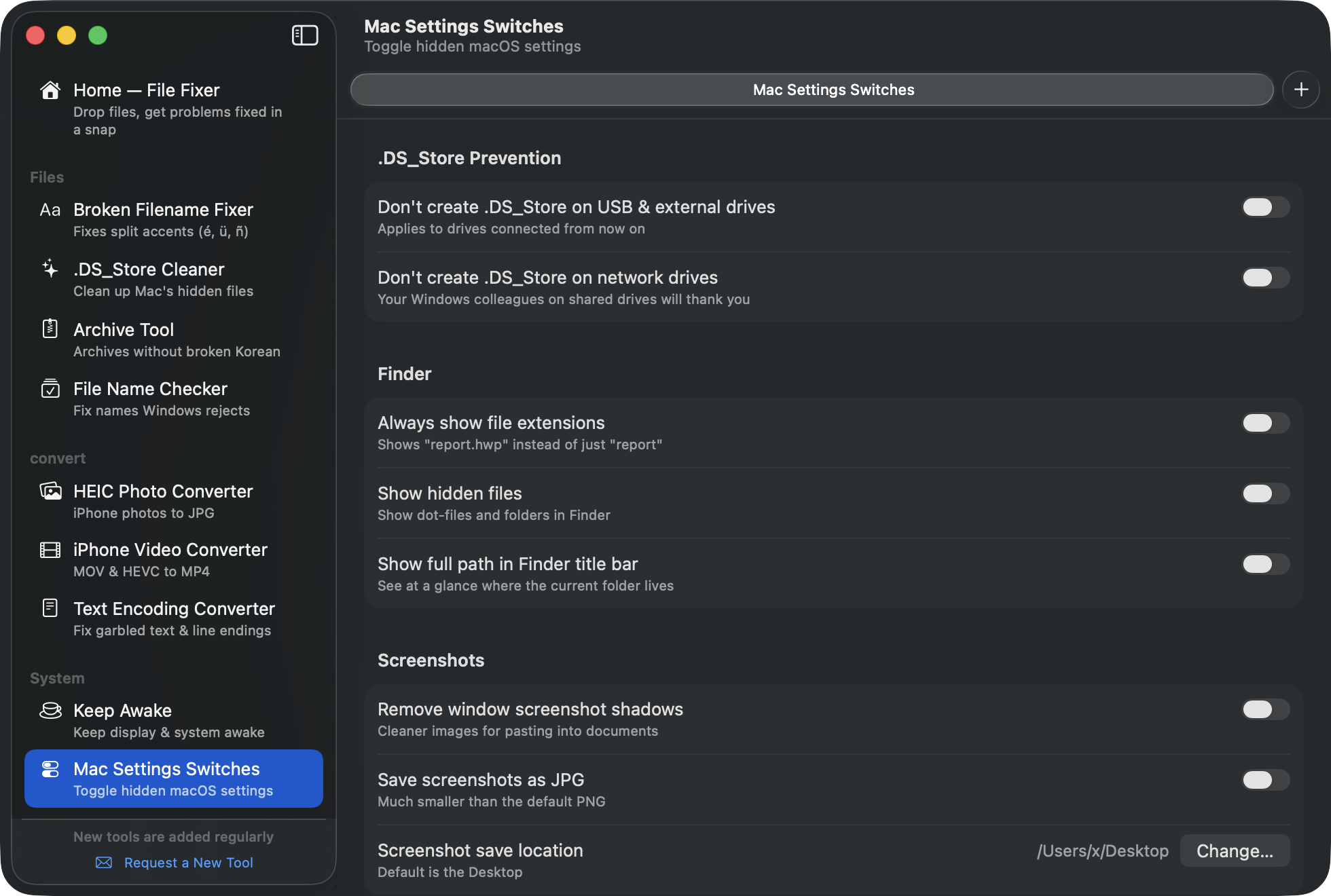
- .DS_Store prevention — never create them on USB or network drives
- Finder — always show extensions, show hidden files, full path in the title bar
- Screenshots — remove window shadows, save as JPG, change the save folder
Changing a Finder setting briefly restarts Finder (open windows reopen). Turn any switch off to go back to the default.
❓FAQ
I changed or deleted something by mistake. Can I undo it?
Right after a batch fix on Home, one click on "Undo Last Fix" restores everything. Beyond that, everything removed or replaced is in the Trash — just put it back. Name conversions never touch file contents, and can be reversed from the tool itself.
How do updates work?
The app checks once a day and notifies you when a new version is out. Click "Install Update" and it downloads and installs itself.
How safe is it?
MacTucTac is notarized by Apple, has no ads or tracking, and only touches the network to check the latest version number.
Where do I get help?
Email xsapiens75@gmail.com, or use "Request a New Tool" at the bottom of the sidebar to send ideas.